Getting Started
For the best video call experience, we highly recommend you do the following before a call:
Test your camera and microphone
Use an updated browser – we recommend Chrome or Edge for the best compatibility
Check that your browser has access to your camera and microphone
Connect to a stable network, preferably through an ethernet cable
Use headphones or a headset to prevent background noise and audio feedback
Close any other apps that might be using your camera (Zoom, Teams, FaceTime, etc.)
Joining a Call
Your appointment confirmation email will contain a link to your appointment waiting area. You can access your appointment through this link or by following these steps:
Log into your Perci Health account
From the Home screen, you'll see your next steps
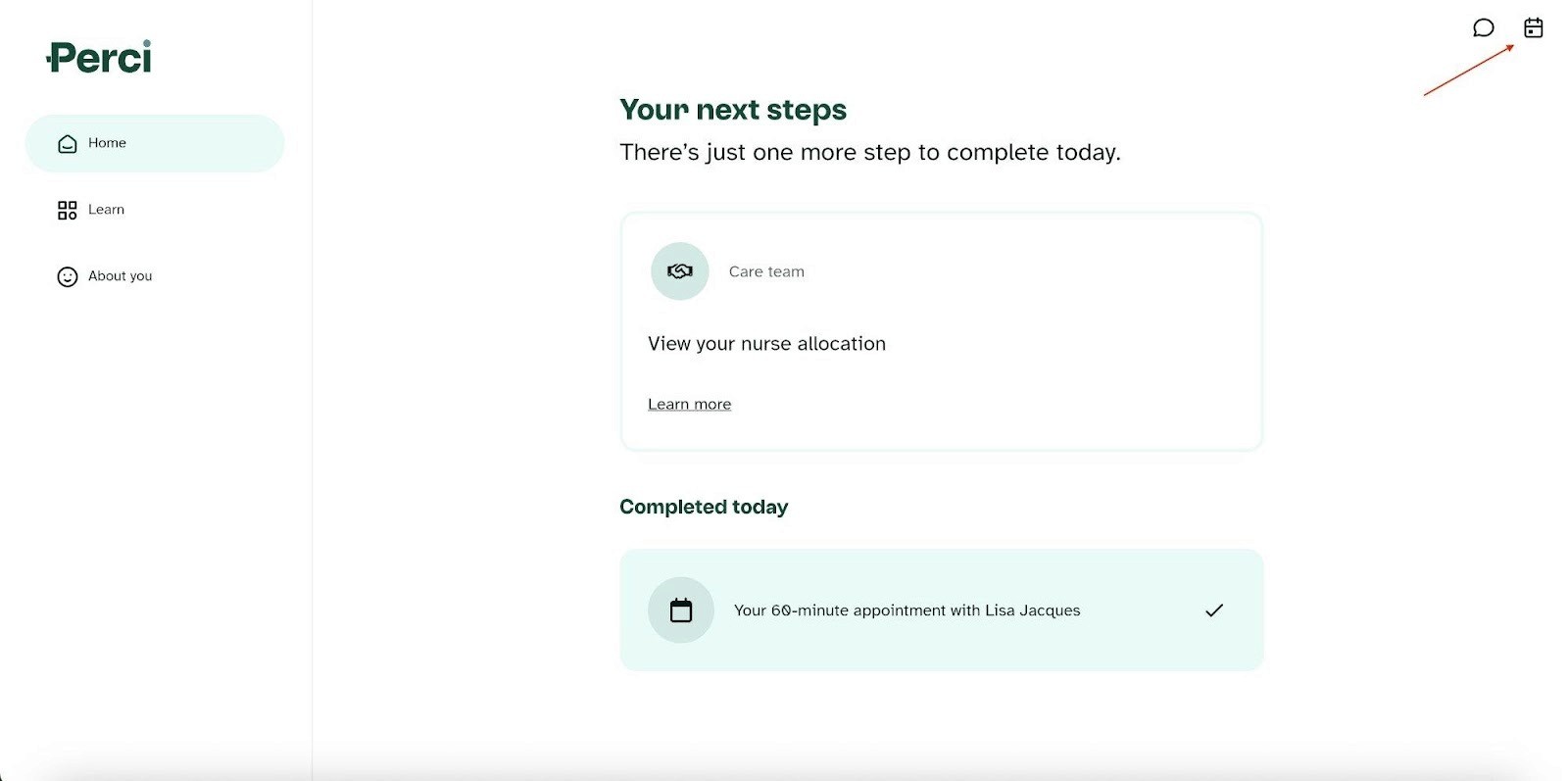
Click the calendar icon in the top right corner to view your appointments
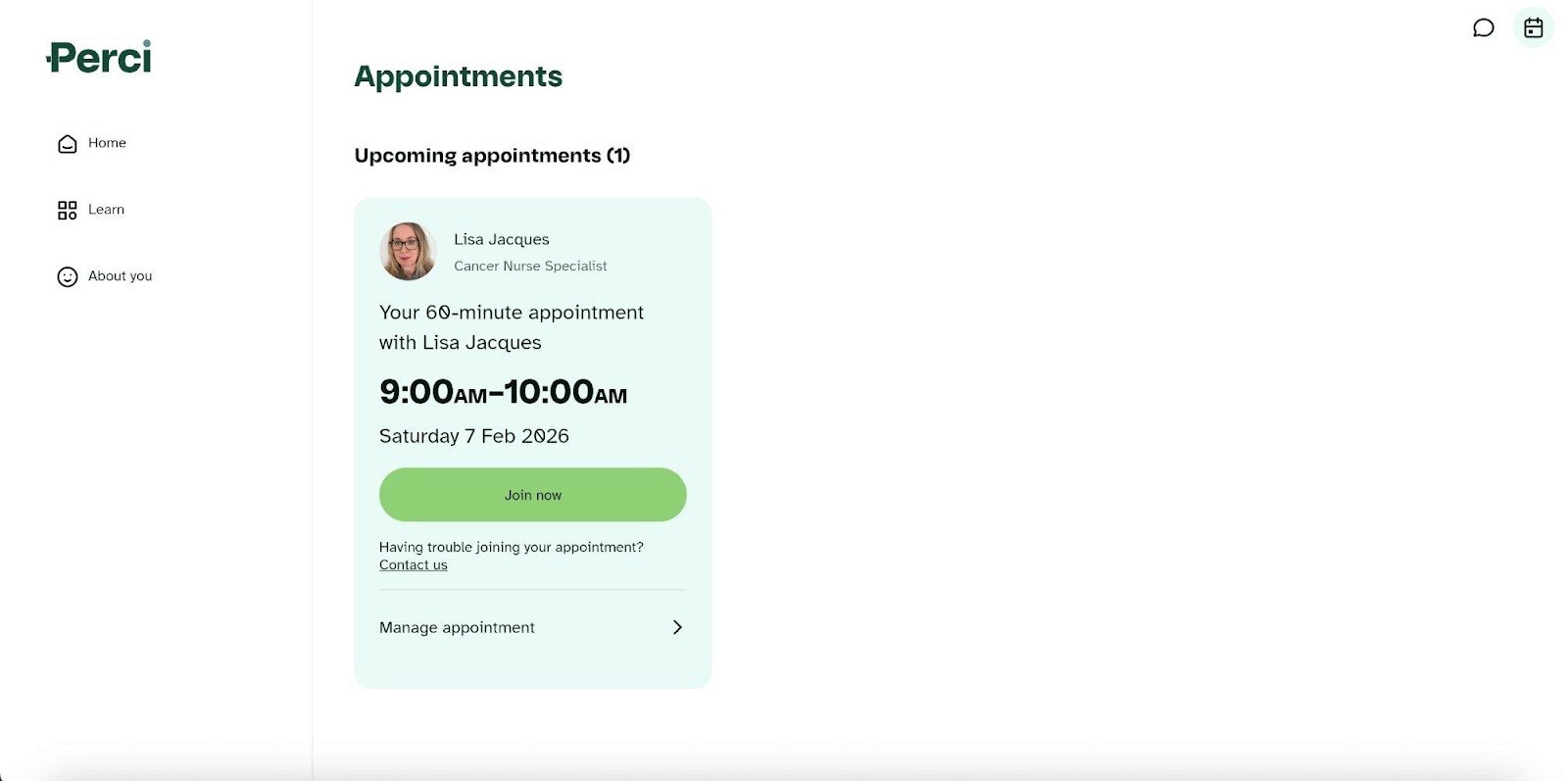
Click "Join now" on the appointment you wish to join
Enabling Your Camera, Microphone and Speakers
When you first join your appointment, you'll first be asked to enable your camera and microphone. This is essential for your video consultation.
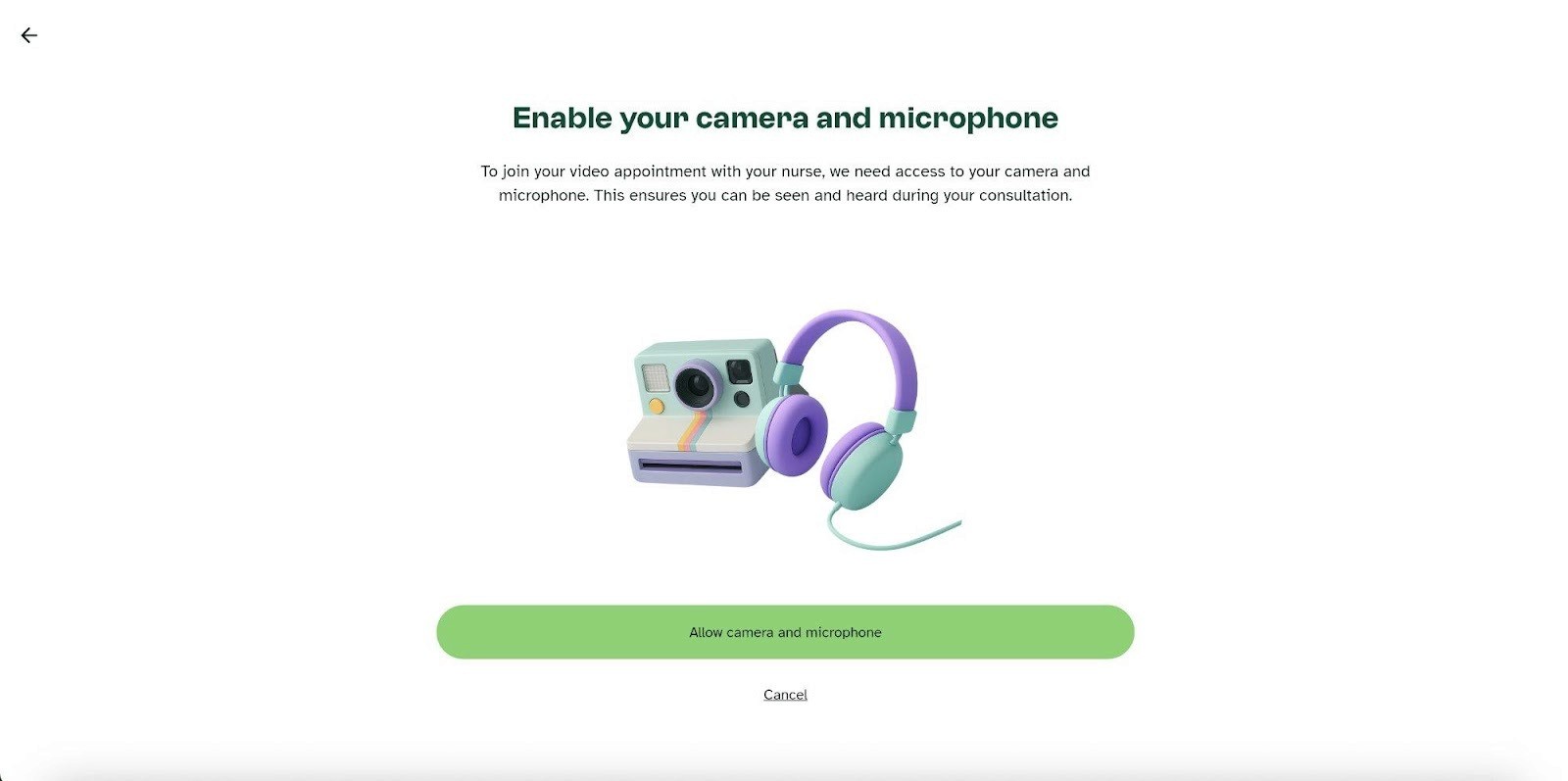
Click "Allow camera and microphone" when prompted. Your browser will then ask you to confirm these permissions.
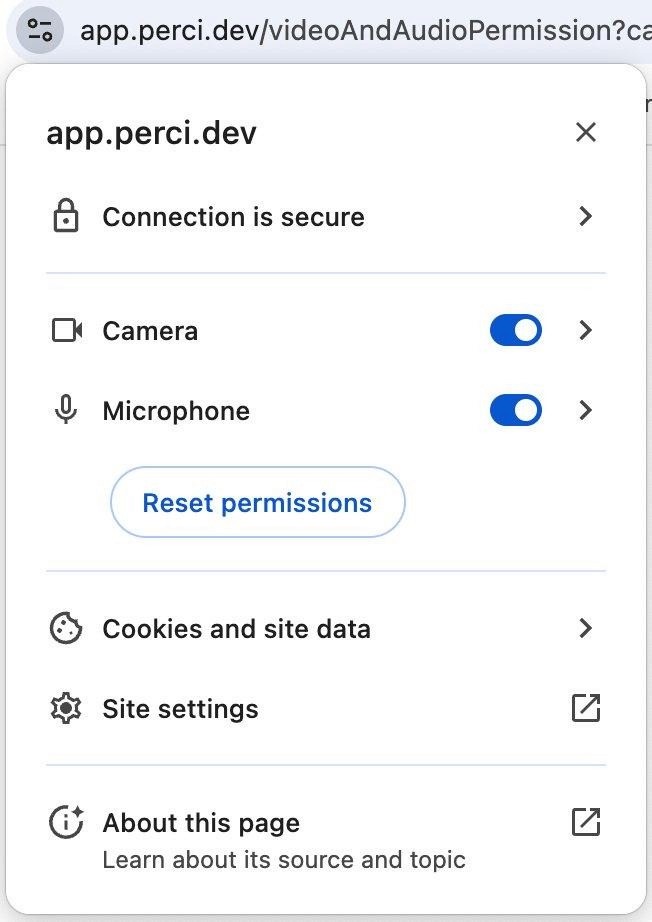
Important: When your browser asks for camera/microphone access, you MUST click "Allow". If you accidentally clicked "Block", you'll need to fix your browser settings (see Troubleshooting section below).
Once permissions are enabled, you'll see a preview of yourself before joining the call:
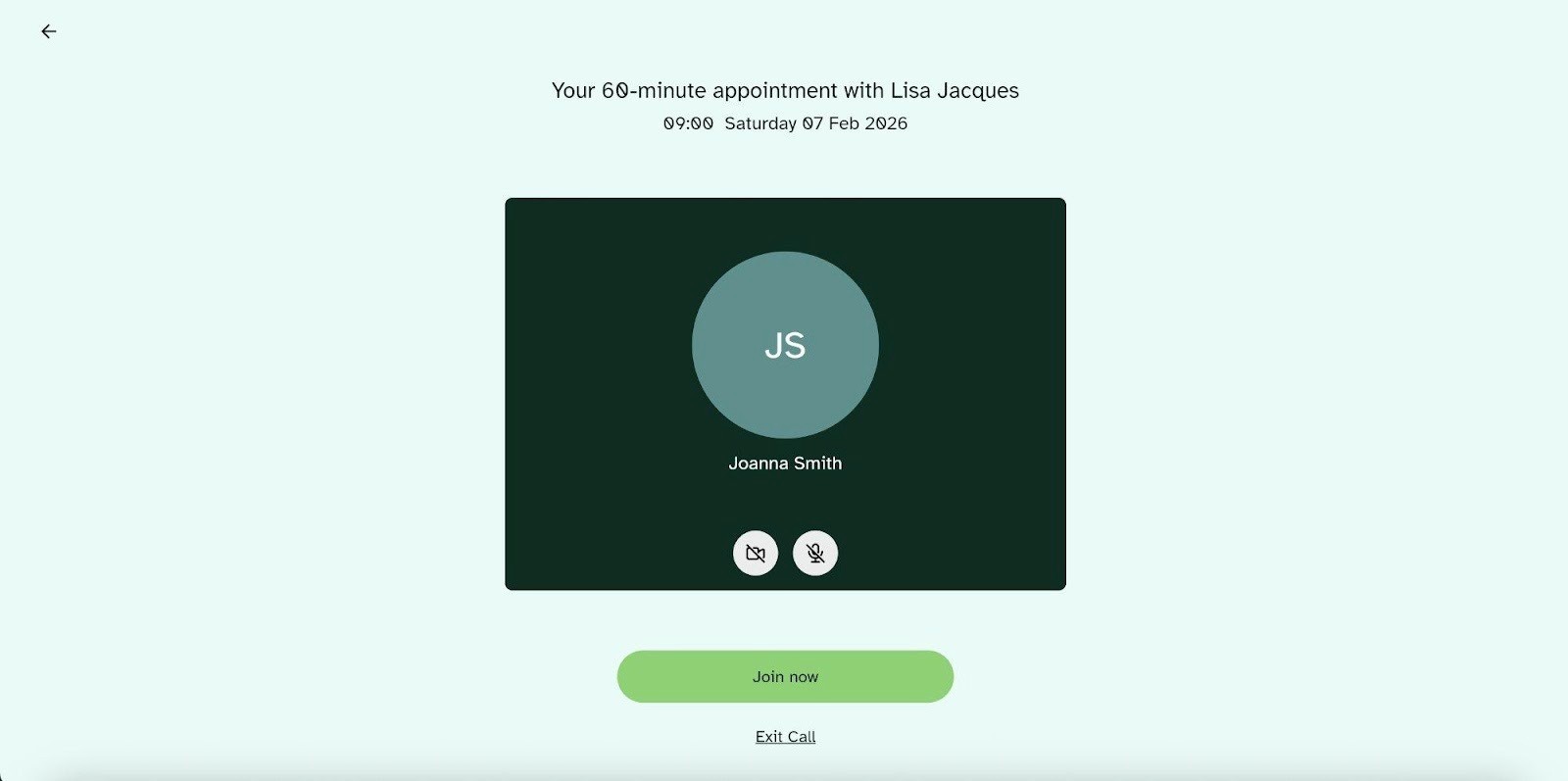
If you can see yourself in the preview, your camera is working correctly. Click "Join now" to enter the call. Click the buttons under your name to turn on and off your camera, and mute and un-mute.
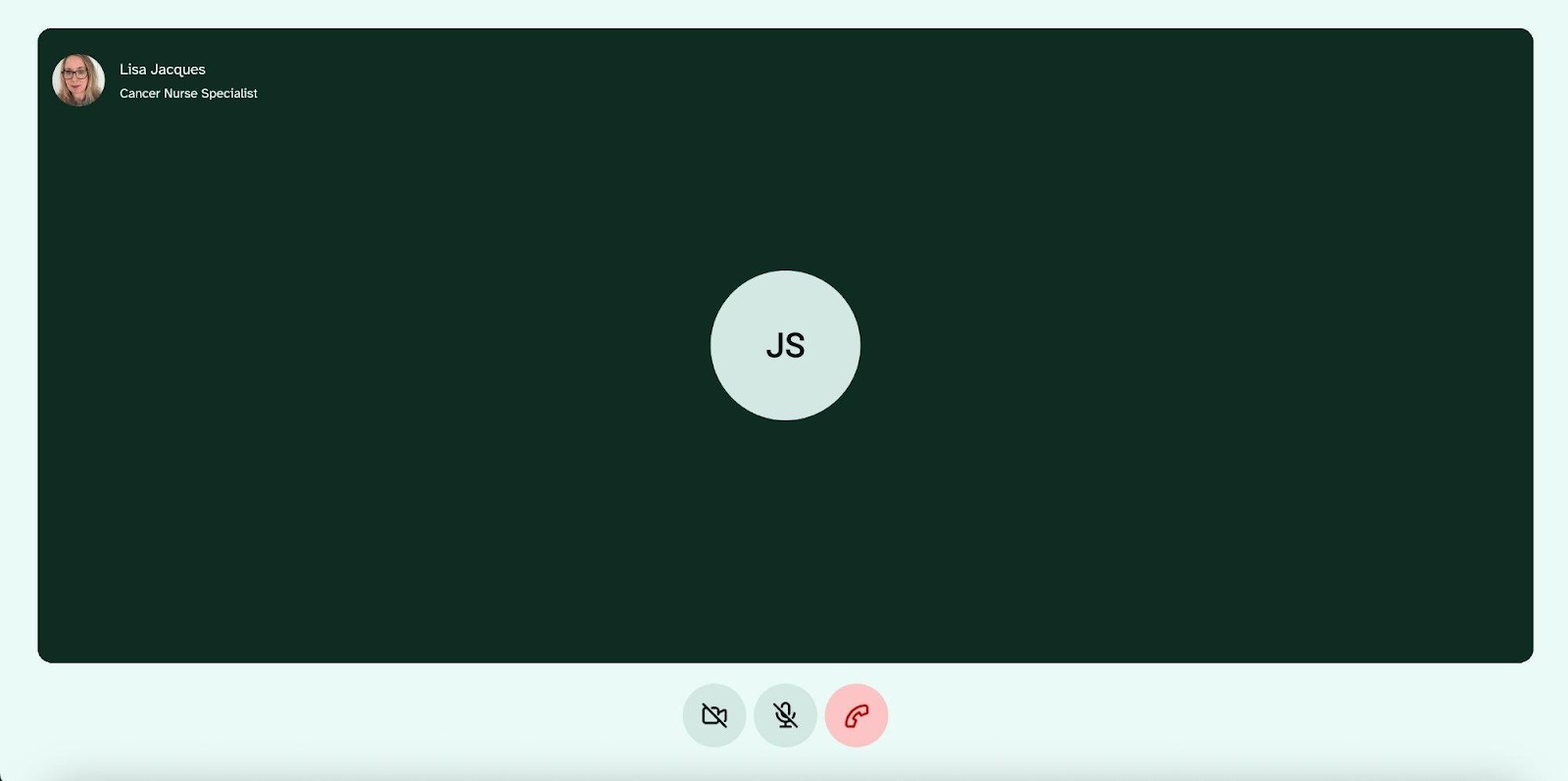
This is the view you will see once you have joined the call. Use the buttons under your name to turn on and off your camera, and mute and un-mute. The red icon is to leave up the call.
Device Compatibility
Windows PC
i5 processor with 3GB of RAM
Windows 10 or later
Apple Mac
i5 processor and 3GB of RAM
MacOS 12 or later
Android Smartphone or Tablet
Android 10 and above with current security and platform updates
Apple iPhone or iPad
iOS 13 and later versions
Browser Compatibility
Recommended: Chrome or Edge (Chromium-based) – best compatibility, all features work correctly.
We support the following web browsers:
Chrome 124 and above
Safari 17.4 and above (note: camera/mic permissions can be finicky on Safari)
Firefox 124 ESR and above
Microsoft Edge 124 and above
iOS Safari (in iOS 13 and later)
Android Chrome, Firefox, Samsung Internet
Not supported: Internet Explorer – the app will not load correctly.
Troubleshooting Video Consultations
The following quick fixes solve most video consultation issues:
Refresh your browser (press F5 or click the reload button) – this fixes about 20% of issues
Check browser permissions – look for the camera icon in your address bar and ensure camera and microphone are set to "Allow"
Try Incognito/Private mode (Ctrl+Shift+N in Chrome) – this helps identify if browser extensions are causing problems
Try a different browser – we recommend Chrome for the best experience
If those steps don't work:
Make sure other apps aren't using your camera/microphone (close Zoom, Teams, FaceTime, etc.)
Quit and reopen your browser completely (on Mac, hold Command ⌘ + Q)
Reboot your computer
Try another device or network
Camera or Microphone Not Working
In most cases (about 80%), this is a browser permissions issue. Here's how to fix it:
Chrome (Desktop):
Look for the camera/lock icon in the address bar (left side)
Click it and check Camera & Microphone settings
If blocked, select "Always allow" and click "Done"
Refresh the page (F5)
Safari (Desktop):
Go to Safari menu → Settings for This Website
Set Camera and Microphone to "Allow"
Refresh the page
Safari (iPhone/iPad):
Go to Settings app → Safari → Camera → set to "Ask" or "Allow"
Do the same for Microphone
Close Safari completely (swipe up from the app) and reopen
How to verify it's fixed: You should see your video preview before joining the call. If you can see yourself, your permissions are working correctly.
Can't Hear Others or They Can't Hear You
Check that your audio is routed to the correct speaker or headphones
If using Bluetooth headphones, try disconnecting them and using your device's built-in speakers/mic
Check your browser's microphone settings are set to the correct device
Close other applications that might be using your microphone
Black Screen Instead of Video
If you see a black rectangle where video should be:
Check permissions again (see above)
Check if you have multiple cameras connected (laptop camera + USB webcam) – try disconnecting the extra device
Make sure no other app is using your camera (your camera can only be used by one app at a time)
Close all other Perci browser tabs except one
Completely quit your browser and reopen it
Note for Safari users: Camera permissions on Safari can be finicky. If you're having issues on Safari, we recommend switching to Chrome.
"Can't Connect" Error or Call Won't Start
If you see a "can't connect" message or the call won't start:
Check your internet connection (try loading another website like google.com)
Refresh the page
Wait 2 minutes and try again
Log out and log back in
Try a different browser
Stuck on Loading Screen
If you see a white screen with a spinning circle that never loads:
Clear your browser cache and cookies:
Chrome: Press Ctrl+Shift+Delete (Cmd+Shift+Delete on Mac)
Select "Cookies and other site data" AND "Cached images and files"
Set time range to "All time"
Click "Clear data"
Close ALL browser windows completely
Reopen browser and try logging in again
This clears old stored data that may be causing the issue – it's like giving your browser a fresh start.
Ad Blockers or Browser Extensions
If you have ad blockers or privacy extensions installed, they might block access to your camera or prevent parts of the app from loading properly. Try opening an Incognito/Private window to test if extensions are the issue.
Still Having Trouble?
If you've tried all the steps above and are still experiencing issues, please contact us:
Email: hello@percihealth.com
Use the "Contact us" link on your appointment page
When contacting support, it helps if you can tell us:
What device and browser you're using
What you see on screen (a screenshot is helpful)
What troubleshooting steps you've already tried
Tip: For the best experience, we recommend using Google Chrome on a desktop or laptop computer.